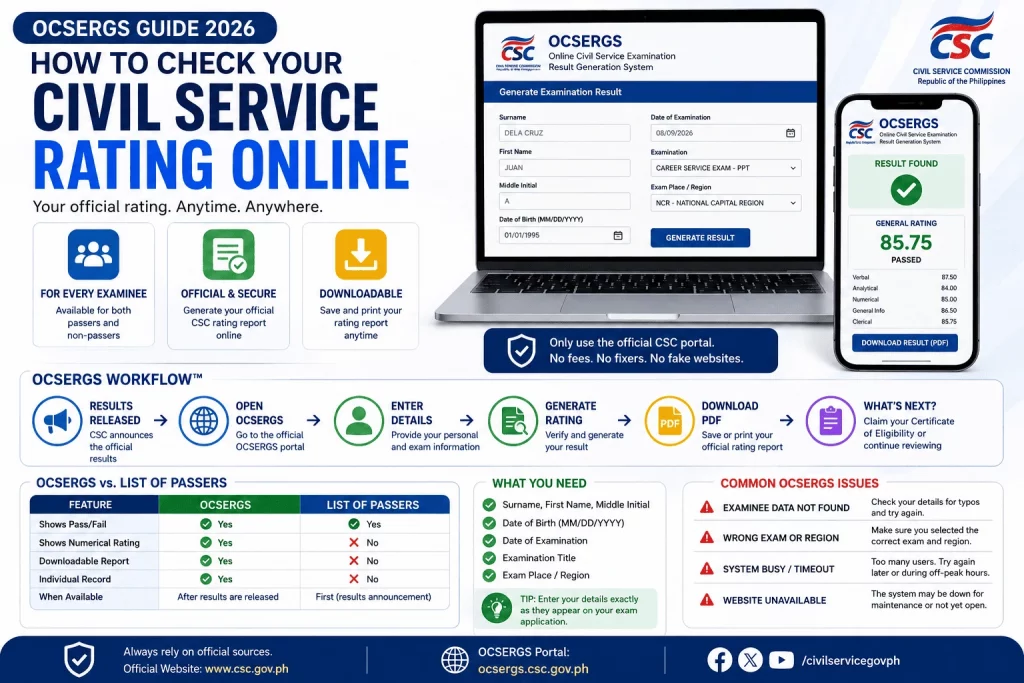
Here’s a mistake a lot of examinees make without realizing it: they check the list of passers, see their name, and assume they now know their full result. They don’t. The list of passers only tells you one thing — whether you passed or didn’t. It does not tell you your exact score, and it’s not the same system you’ll use to get an official, downloadable copy of your rating.
That system is OCSERGS — the Online Civil Service Examination Result Generation System. This is where your actual numerical rating lives, and it’s the tool every examinee, whether they passed or not, eventually needs to use. This guide walks through exactly what OCSERGS is, when it becomes available, what information you need before you start, how to use it step by step on both desktop and mobile, why it sometimes fails to find your record, and what to do next once you have your rating in hand.
This guide focuses specifically on OCSERGS itself — for information on result release schedules, the list of passers, or claiming your Certificate of Eligibility, those topics are covered in our companion guide on Civil Service Exam Results.
What Is OCSERGS?
OCSERGS (Online Civil Service Examination Result Generation System) is the official Civil Service Commission platform that lets examinees — both passers and non-passers — generate and download their individual, detailed Civil Service Exam rating. It becomes available only after the CSC officially releases results for a given exam cycle, and it requires accurate personal and exam-specific details (not a login account) to retrieve your report.
At a Glance: What You Need vs. Where to Get It
| Need | Use |
|---|---|
| Pass/Fail status | List of Passers |
| Exact numerical Rating | OCSERGS |
| Official Eligibility credential | Certificate of Eligibility (CoE) |
What Is OCSERGS?
OCSERGS stands for the Online Civil Service Examination Result Generation System. It’s the CSC’s dedicated online tool for producing individual, detailed rating reports for examinees who took the Career Service Examination – Pen and Paper Test (CSE-PPT), as well as several other CSC-administered exams.
Its Purpose
The core purpose of OCSERGS is simple: to give every examinee a way to independently verify and retrieve their own official numerical rating, without needing to visit a CSC office in person or wait for a mailed report — because, importantly, the CSC does not mail individual reports of rating to examinees. OCSERGS is the self-service alternative that puts that information directly in your hands, generated on demand.
Who Can Use It
This is a detail that surprises a lot of first-time examinees: OCSERGS is not just for passers. Both passing and non-passing examinees can use the system to generate their rating report. If you passed, it gives you documentation of your exact score. If you didn’t pass, it still gives you a detailed breakdown of how you performed — information that’s genuinely useful for understanding where you fell short and what to focus on before your next attempt.
Beyond the standard CSE-PPT, OCSERGS is also generally used to verify results for several other CSC-administered examinations, including the Foreign Service Officer (FSO) exam, Penology Officer Examination, Fire Officer Examination, BCLT/ICLT Examination, and various pre-employment and promotional tests — examinees simply select the correct examination type when using the system.
When Does OCSERGS Open?
This is one of the most important things to understand about OCSERGS: it does not open at the same time results are first announced. The list of passers is typically released first. OCSERGS access for individual ratings tends to follow afterward — commonly cited as opening around 15 days after the official posting of results, though this interval is not guaranteed and can vary by exam cycle.
The critical rule here is simple: OCSERGS only opens after the CSC has made an official announcement that it’s available. There’s no way to access it early, no matter how ready you feel to check, and attempting to access it before the official opening simply won’t return any results — your data isn’t in the system yet, not because of an error on your end, but because the window genuinely hasn’t opened.
The safest approach is to watch the official CSC website and its official communication channels for the specific announcement confirming OCSERGS is open for your exam cycle, rather than relying on a general rule of thumb or a date someone else mentioned online.
OCSERGS Workflow™
Here’s the complete process, visualized from start to finish:
Results Released
      ↓
Open OCSERGS
      ↓
Enter Details
      ↓
Generate Rating
      ↓
Download PDF
      ↓
    Pass?
      ↓
  ┌───┴───┐
  ↓       ↓
Claim   Continue
Eligibility  Review
Each step depends on the one before it — you can’t generate a rating before entering accurate details, and you can’t download a report before it successfully generates. Keep this sequence in mind if you ever feel like you’re stuck: the fix is almost always in the step right before where things stopped working.
What You Need Before Using OCSERGS
Unlike some online portals, OCSERGS doesn’t use a username-and-password account system. Instead, it verifies your identity through a precise combination of personal and exam details. Have the following ready before you start:
- Surname — exactly as it appears on your exam application
- First name — including your suffix (Jr., Sr., III, etc.) if applicable, formatted correctly
- Middle initial — just the first letter of your middle name, with no period after it
- Date of birth — in MM/DD/YYYY format
- Date of examination — the exact date you took the exam
- Type of examination — Professional or Subprofessional (or the specific exam type, if not CSE-PPT)
- Region or place of examination — where you actually sat for the exam
One detail worth calling out clearly: in current versions of the system, your examinee number is generally no longer required to generate your rating through OCSERGS — the system instead relies on the personal and exam details listed above. If you happen to still have your examinee number on hand from your Application Receipt or CSC Official Receipt, it doesn’t hurt to keep it accessible, but don’t worry if you’ve misplaced it.
Why Every Field Matters
It’s worth understanding why OCSERGS is so strict about exact formatting, since it explains almost every error examinees run into. Because the system doesn’t use a personal login or account, it has to verify your identity purely through the combination of details you provide matching a record in the CSC’s database exactly. There’s no username tying your session to a pre-verified profile — every attempt is essentially a fresh identity check. That’s precisely why a stray space, an unnecessary period, or a nickname used instead of your legal first name can cause a failed match even when you’re entering genuinely correct information from your own memory. Treating this form with the same care you’d use filling out an official government application — rather than the way you’d casually fill out a search box — will save you multiple frustrating attempts.
Step-by-Step Guide to Using OCSERGS
Step 1 — Visit the official OCSERGS portal. Go directly to the official OCSERGS page, accessible through the CSC website or its direct link. Always type or navigate to the address carefully rather than clicking links from unofficial sources or search ads, since exact-domain accuracy matters for a government portal like this.
Step 2 — Enter your details. Fill in each field carefully: surname, first name (with suffix if applicable), middle initial (first letter only, no period), date of birth in the correct format, date of examination, type of examination, and region. Every field on this form is sensitive to exact spelling, spacing, and formatting — a stray space or an unnecessary period can cause the system to fail to match your record even when your information is technically correct.
Step 3 — Verify your identity. Some versions of the portal include an additional verification step, such as a captcha or a confirmation prompt, to ensure the request is coming from a real user rather than an automated system. Complete this step as prompted.
Step 4 — Generate your report. Submit the form. If your details match a record in the CSC’s database, the system will generate your individual rating report on screen.
Step 5 — Download or save your report. Once your report appears, save it — either by downloading a PDF version if the option is provided, or by printing directly to PDF from your browser. Don’t assume you can simply revisit the page later without re-entering your details; save a copy immediately while it’s in front of you.
Checking OCSERGS on Mobile
Most examinees today check OCSERGS from a smartphone, and the process is fully usable on mobile — but a few practical adjustments make it smoother:
- Use your phone’s default browser in “desktop site” mode if the form looks cramped or fields are hard to tap accurately. Many mobile browsers offer this as a menu option, and it can make small form fields easier to interact with correctly.
- Type carefully rather than relying on autocorrect or autocomplete, since your phone’s keyboard may try to “helpfully” capitalize, auto-space, or auto-correct your name or region entry in a way that doesn’t match your official records.
- If the page fails to load or appears broken, try switching between Wi-Fi and mobile data, since occasional connectivity issues (rather than the OCSERGS system itself) are a common, easily overlooked cause of loading problems.
- Take a full screenshot of your results once generated, in addition to attempting to download a PDF, as a backup in case the download doesn’t complete properly on a mobile connection.
Checking OCSERGS on Desktop
For examinees who prefer or have access to a desktop or laptop, a few tips help avoid common friction points:
- Use an updated, standard browser (such as the latest version of Chrome, Firefox, or Edge) rather than an outdated or unusual browser, since older browser versions can sometimes cause government portal forms to render or submit incorrectly.
- Disable aggressive ad-blockers or script-blockers temporarily if the form fails to load properly, since some of these tools can interfere with form submission on portals that rely on additional scripts for verification steps.
- Save your generated report as a PDF using your browser’s built-in “Print to PDF” or “Save as PDF” function if no direct download button is provided — this preserves a permanent, shareable copy you can reference later without needing to regenerate it.
- Print a physical copy for your records if you anticipate needing to present it in person at any point, such as when following up with a CSC Regional or Field Office.
Understanding Your Rating
Once your report generates, you’ll see your official numerical rating — a specific figure representing your general average performance on the exam, rather than just a pass/fail label.
What Your Rating Means
A passing rating means your general average met or exceeded the CSC’s required threshold (historically around 80.00), which qualifies you for the corresponding civil service eligibility.
A failing rating means your general average fell short of that threshold. It’s still valuable information — a specific number, rather than a vague “not this time,” gives you a real sense of how close you were and where to focus your next round of preparation.
Rating vs. Result — Why the Distinction Matters
It’s worth repeating this distinction clearly, since it’s the exact confusion this guide exists to clear up: your result (from the list of passers) is a binary pass/fail status. Your rating (from OCSERGS) is your specific numerical score. You can know your result without ever generating your rating — but you cannot get a complete, documented picture of your performance without going through OCSERGS specifically.
OCSERGS vs. List of Passers — Feature Comparison
| Feature | OCSERGS | List of Passers |
|---|---|---|
| Shows Pass/Fail status | No | Yes |
| Shows exact Rating | Yes | No |
| Downloadable individual report | Yes | No |
| Individual record (not a shared list) | Yes | No |
The two tools are complementary, not interchangeable — the list of passers is your fastest way to learn your outcome, while OCSERGS is the only place to get an official, individual, downloadable record of your actual score.
Common OCSERGS Errors (And What They Actually Mean)
If OCSERGS doesn’t return your record on the first try, it’s rarely because your results don’t exist — it’s almost always one of the following, all of which are fixable:
- “Examinee Data Not Found in the Database.” This is the most common error message examinees encounter. It typically means one or more fields don’t exactly match what’s on file — not that your results are missing.
- Wrong name formatting. A middle initial entered with a period, a suffix placed incorrectly, or a nickname used instead of your legal first name can all trigger a mismatch.
- Wrong exam date or type. If you’ve taken the exam more than once, or if you’re unsure whether you registered as Professional or Subprofessional, selecting the wrong option will prevent a match even if every other field is correct.
- Wrong region. Entering the region where you currently live instead of where you actually sat for the exam is a frequent, easy-to-miss mistake.
- Heavy traffic. Immediately following an OCSERGS opening announcement, large numbers of examinees attempt to access the system simultaneously, which can cause slow loading or temporary failures unrelated to your actual data.
- Website unavailable or server timeout. Government portals can experience downtime, especially during peak access periods. This is a system-side issue, not a sign that something is wrong with your record.
OCSERGS Troubleshooting Checklist™
Before assuming your results are missing or contacting a CSC office, confirm each of the following:
- ✔ Correct spelling of your full name, exactly as it appears on your exam application
- ✔ Correct region (where you took the exam, not where you currently live)
- ✔ Correct exam type and date selected
- ✔ Correct birthdate, entered in the exact required format (MM/DD/YYYY)
- ✔ Waited for the official OCSERGS opening announcement, rather than attempting access too early
If you’ve verified all five points and the system still can’t locate your record, the appropriate next step is to reach out directly to the CSC Regional or Field Office where you filed your exam application, since account-specific issues need to be resolved through official CSC channels rather than guesswork.
Can Non-Passers Use OCSERGS?
Yes — and this deserves emphasis, because many non-passing examinees assume OCSERGS is only for those who passed and skip it entirely. That’s a missed opportunity. Whether you passed or not, OCSERGS generates your full rating report, giving you a documented, specific score rather than just knowing you weren’t on the list of passers.
For examinees planning to retake the exam, this detailed rating is genuinely useful — it’s the closest thing to a diagnostic report you’ll get, and reviewing it can help you approach your next attempt with more clarity than simply knowing “I didn’t pass.”
Turning Your Rating Into a Study Plan
If your rating shows you fell short of the passing threshold, resist the urge to file it away and move on without really looking at it. A general rating close to the passing mark tells a very different story than one significantly below it — the former suggests targeted refinement of a few weak areas might be enough next time, while the latter suggests a more foundational, full-coverage review is needed. Either way, treat your rating as a starting point for your next study plan rather than just a final grade to react to emotionally. Pair it with full-length, timed mock exams in the weeks that follow to track whether your actual readiness is improving, not just your general familiarity with the material.
How to Download Your Rating
Once your report is generated on screen, here’s how to make sure you actually keep a usable copy:
- PDF download. If the portal provides a direct download button, use it immediately rather than assuming you can return later.
- Print to PDF. If no direct download option is available, use your browser’s built-in print function and select “Save as PDF” (or “Microsoft Print to PDF” on Windows, or the equivalent on Mac) instead of printing to a physical printer.
- Save a backup copy. Store your downloaded file somewhere reliable — cloud storage, email-to-self, or a labeled folder on your device — since you may need to reference or present this document later.
- Physical printing. If you anticipate needing a hard copy for any in-person process, print it directly from the saved PDF rather than relying on a screenshot, which can lose formatting and clarity.
Is OCSERGS Free?
Yes. Generating and downloading your rating through OCSERGS is completely free of charge — there is no fee to use the official system. If you encounter any website, app, or third-party “service” asking for payment to check, unlock, or expedite your OCSERGS rating, that is not a legitimate CSC channel, and you should not provide payment or personal information to it.
Security Tips: Protecting Yourself from Fake OCSERGS Sites
Because OCSERGS involves entering personal information like your full name and birthdate, it’s a natural target for imitation by unofficial or fraudulent websites. Protect yourself with these practices:
- Avoid unofficial links. Never access OCSERGS through a link shared in a random Facebook post, comment, or unsolicited message — always navigate to it through the official CSC website or a verified direct link.
- Avoid fake portals. Some sites mimic the look of OCSERGS closely enough to fool a hurried examinee. Double-check the web address carefully before entering any personal information.
- Never pay. As noted above, legitimate OCSERGS access never requires payment. Treat any request for payment as an immediate red flag.
- Only trust the official CSC domain. When in doubt about whether a link is legitimate, navigate to the CSC’s main website directly and find the OCSERGS link from there, rather than trusting a link from an external source.
What to Do After Viewing Your Rating
Once you have your official rating in hand, your next steps depend on the outcome.
If you passed: Claim your Certificate of Eligibility (CoE) → Begin applying for government jobs that match your eligibility level.
If you did not pass: Review your performance honestly, focusing on the sections where your rating suggests you were weakest → Use practice tests and mock exams to rebuild your readiness → Prepare for your next examination cycle.
Both paths are legitimate next steps. The only outcome to avoid is generating your rating and then doing nothing with the information — whether that means delaying your CoE claim indefinitely after passing, or abandoning your review entirely after a result that didn’t go your way.
Related resources:
- Civil Service Exam Results: Complete Guide
- How to Claim Your Certificate of Eligibility
- Government Jobs Guide: Where and How to Apply
- 170-Item Mock Exam: Full Coverage and Requirements
Frequently Asked Questions
What is OCSERGS? OCSERGS (Online Civil Service Examination Result Generation System) is the official CSC platform that lets examinees generate and download their individual, detailed Civil Service Exam rating report.
Is OCSERGS free? Yes, generating your rating through OCSERGS is completely free. Never pay any site or service claiming to provide faster or exclusive access.
Can non-passers use it? Yes. Both passing and non-passing examinees can generate their full rating report through OCSERGS.
Can I print my rating? Yes. You can print your report directly from the portal, or save it as a PDF first and print that file for a cleaner, more reliable copy.
Can I use OCSERGS on mobile? Yes, OCSERGS is accessible from smartphones. Using “desktop site” mode in your mobile browser can make the form easier to fill out accurately.
Can someone else access my rating on my behalf? Technically, anyone who has your exact personal details (name, birthdate, exam information) could generate your report, since OCSERGS doesn’t use a personal login system. For this reason, it’s wise to treat your exam details as sensitive information and only share your generated rating report with people you trust.
Why can’t the system find me? The most common causes are formatting mismatches — an incorrect middle initial format, wrong region, wrong exam date, or wrong exam type. Double-check each field carefully before assuming your results are missing.
Can I retrieve old ratings from previous exam cycles? OCSERGS is generally used to check ratings tied to a specific, correctly selected exam date and type. If you’ve taken the exam multiple times, make sure you’re selecting the exact administration you want to check, since selecting the wrong date will return no match even if you did take that particular exam.
Do I need to create an account to use OCSERGS? No. OCSERGS does not require account creation or a login. You verify your identity each time by entering your personal and exam details directly.
What if I entered everything correctly and it still doesn’t work? If you’ve triple-checked every field against the Troubleshooting Checklist above and it still fails, the issue is most likely on the system side (such as heavy traffic or temporary downtime) or requires direct verification from your CSC Regional or Field Office.
Does OCSERGS show which specific questions I got wrong? No. OCSERGS provides your general rating and related summary information, not an item-by-item breakdown of individual exam questions.
Is my examinee number still required? Generally, no — current versions of OCSERGS rely on your personal and exam details rather than requiring your examinee number. Keep it on hand if you have it, but don’t worry if it’s misplaced.
What format should I use for my birthdate? Enter your date of birth in MM/DD/YYYY format, using two digits for both the month and the day (for example, 04/09/1998, not 4/9/1998).
Should I include a period after my middle initial? No. Enter only the single letter of your middle initial with no period following it, since the field is format-sensitive.
How soon after results are released can I use OCSERGS? OCSERGS typically opens some time after the official list of passers is released — commonly cited as around 15 days, though this can vary by exam cycle. Wait for the CSC’s official announcement confirming OCSERGS is open before attempting to check.
OCSERGS Action Plan™
Results Released → Open OCSERGS → Generate Rating → Save PDF
From there, your path depends on your outcome:
Pass? → Claim Eligibility
Did not pass? → Continue Reviewing
OCSERGS Readiness Checklist™
Before you sit down to check your rating, confirm:
- ✔ Results have been officially released by the CSC
- ✔ You have your correct personal details ready (exact name spelling, birthdate, exam date, type, and region)
- ✔ You have a stable internet connection
- ✔ You’re accessing OCSERGS through the official CSC website — not a third-party link
- ✔ You’re prepared to immediately save a PDF copy of your report once it generates
Your rating is the most complete, official record of your Civil Service Exam performance — and OCSERGS is the only place to get it directly from the source. Take the time to enter your details carefully, save your report the moment it generates, and use what you learn to move forward with confidence, whatever the outcome.
Learn how to use OCSERGS Guide to check your Civil Service Exam rating online. Follow the official CSC process, troubleshoot common errors, and download your rating report.
Official References
For the most accurate, up-to-date information on results, ratings, and eligibility, always refer directly to these official sources:
- Civil Service Commission (CSC) — www.csc.gov.ph
- CSC Examination Portal — exam.csc.gov.ph
- OCSERGS (Online Civil Service Examination Result Generation System) — accessible via the CSC website or erpo.csc.gov.ph/ocsergs
[Continue Reviewing with Our Free Practice Tools →]
Related Guides
- Civil Service Exam Requirements 2026: Complete Application Guide and Checklist
- CSC Eligibility: Professional vs Subprofessional Exam – What’s the Difference?
- Government Jobs in the Philippines 2026: Complete Job Search Guide
- CSC Eligibility Requirements: Complete Guide for Government Job Applicants
- Civil Service Exam Coverage 2026: Complete Guide for Filipino Examinees
- RA 1080 Eligibility Guide: Automatic Civil Service Eligibility for Board and Bar Passers
- Civil Service Exam Results: How to Check Your Rating, List of Passers & Release Date