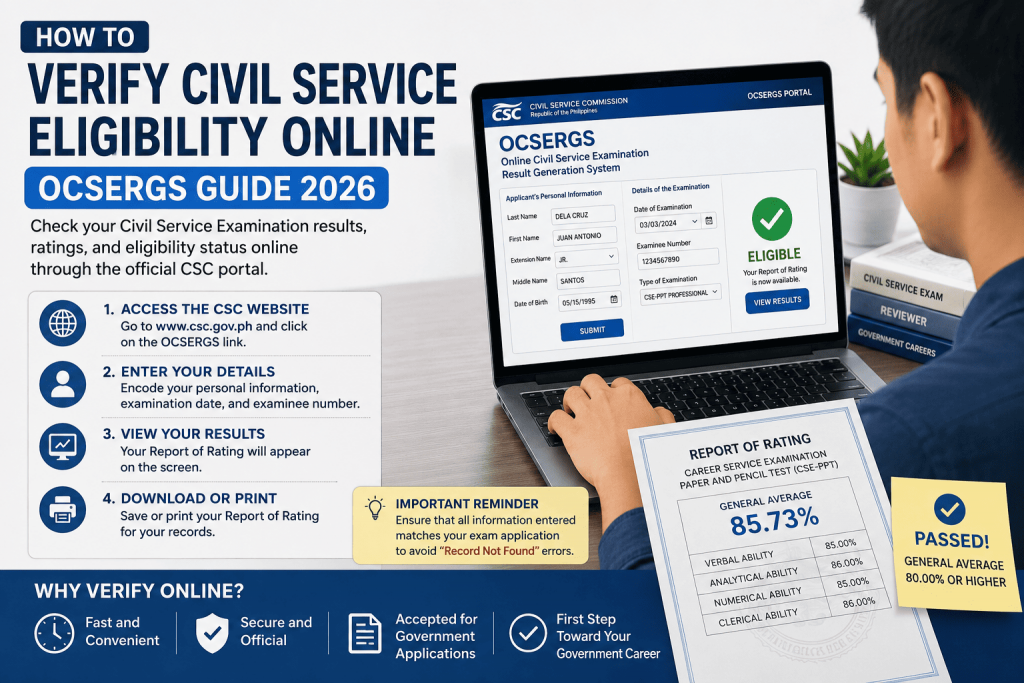
To verify civil service eligibility online, you no longer need to wait for slow mail or physical notification letters. The Civil Service Commission (CSC) has made it fast and accessible for anyone who sat for the paper test (CSE-PPT) or computerized platform (COMEX) to immediately check their ratings and certification status.
The primary gateway for verification is the Online Civil Service Examination Result Generation System (OCSERGS). This portal allows both passers and non-passers to access their formal digital report of rating.
This step-by-step guide walks you through verifying your civil service eligibility online, bypassing common technical errors, and preparing your documents for government job applications.
💻 Step 1: How to Verify Civil Service Eligibility Online via OCSERGS
To avoid identity phishing, fraudulent trackers, and middleman data schemes, always bypass third-party blogs or unofficial social media links. Navigate directly to the official, encrypted CSC system.
- Open an active web browser and go to the official Civil Service Commission website: www.csc.gov.ph.
- Scroll down to the Quick Links or System Widgets dashboard.
- Click on OCSERGS (or navigate directly to the application server link: https://erpo.csc.gov.ph/ocsergs/).
📝 Step 2: Encode Your Information Correctly
The system cross-references entries using strict database parameters. A single missing suffix or space will result in a “Record Not Found” error screen. Fill out the application data fields using this precise structure:
1. Applicant’s Personal Information
- Last Name: Enter your full legal last name (e.g., Dela Cruz).
- First Name: Input your full complete first name, including any secondary extensions (e.g., Juan Antonio).
- Extension Name: If applicable, select your suffix indicator (such as Jr., Sr., III) from the dropdown window. Leave it completely blank if none exists.
- Middle Name: Input your full middle name. If you do not have a middle name on your birth records, leave this box completely blank.
- Date of Birth: Use the integrated calendar picker or input the format precisely as illustrated (e.g., MM/DD/YYYY).
2. Details of the Examination
- Date of Examination: Click the dropdown selector and select the exact date you took the exam. The portal supports both archival records and the most recent examination deployments.
- Examinee Number: Enter the unique multi-digit identification number assigned to you on your examination day.
🔍 Forgot Your Examinee Number?
If you misplaced your room routing slip or forgot your examinee number, click the “Forgot Examinee No.?” anchor link below the entry line. The system will unlock secondary identity recovery questions—such as your application receipt details or active mobile verification numbers—to retrieve your index code.
- Type of Examination: Select your specific level category from the parameters list (e.g., CSE-PPT Professional or CSE-PPT Subprofessional).
Click the Submit button to process the search query.
📜 Step 3: View, Download, and Print Your Report of Rating
If your entries match the official database, the screen will generate your official individual Report of Rating.
- What it displays: The digital page shows your complete performance breakdown, including your General Average and separate scores for specific subcategories (Verbal, Analytical, Numerical, and Clerical).
- The Action Plan: To save a local copy, click the Print or Download PDF button icon inside the utility panel. Keep this document saved on your personal computer or smartphone.
🛠️ Common Errors When You Verify Civil Service Eligibility Online
If you are positive that you passed or took the exam but the system blocks your retrieval, check these three common structural layout issues:
- Mismatched Name Suffixes: If you accidentally wrote your extension name (like “Jr.”) directly inside the First Name box during exam registration instead of separating it, the online portal will reject the query. Try swapping your text placements.
- Strict Middle Name Rules: If your school or corporate accounts use your middle initial, do not use it here unless specified. Ensure you input the full middle name spelling as recorded on your initial CS Form 100 application.
- Database Processing Gaps: The CSC uploads testing batches chronologically by region. If local news sources just published the list of passers yesterday, the OCSERGS server may require up to 48 hours to fully sync and make your digital report downloadable.
⚠️ Filing Verified Status into Your Personal Data Sheet (PDS)
Once you verify your passing mark online (which must be a general score of 80.00% or higher), you can confidently declare it on your official state employment applications.
[Image Anchor: PDS Section IV Entry Layout]
When filling out Section IV (Civil Service Eligibility) of the mandated CS Form No. 212 (Revised 2025) Personal Data Sheet, copy the exact text layout verified by the portal:
- Column 23: State your designation rank precisely: CAREER SERVICE PROFESSIONAL or CAREER SERVICE SUBPROFESSIONAL.
- Column 24 (Rating): Input your exact numerical percentage grade directly from your OCSERGS report (e.g., 85.73%). Do not round up or down.
- Column 25 & 26: Write the official date and testing city location verified by the system tracking tool.
Next Steps: Claiming Your Official Security Certificate
While an OCSERGS online report is a perfect tool for checking your scores and updating your personal files, appointing government offices will eventually require a formal certificate to finalize permanent job positions.
To transition from an online screenshot to a physical document printed on security paper, read our next step-by-step article: How to Claim CSC Certificate of Eligibility.
Related Topics
To learn more about navigating your career in the Philippine government, explore our deep-dive guides: